Folders
In this step you define where BarcodeOCR picks up files and where it saves the results. Every configuration needs at least one input folder, one output folder and one error folder.
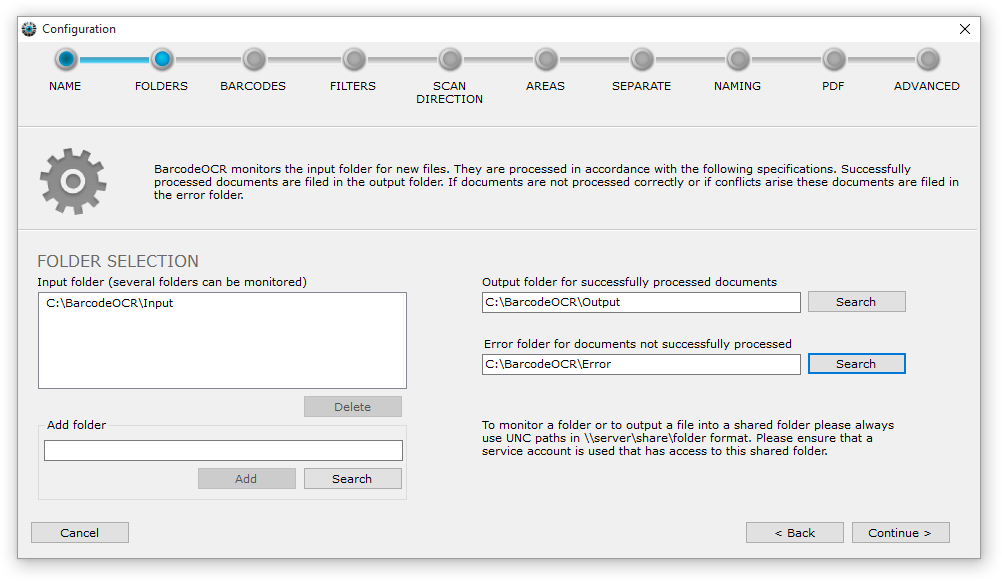
Input folder
BarcodeOCR watches one or more input folders per configuration. This is usually the folder your scanner saves to, or another folder where new files arrive regularly.
- Enter the path directly and click Add, or select the folder with Search. It then appears in the list.
- Click Delete to remove a folder from the list.
- An input folder can only be used in one configuration.
Enter network folders as a UNC path, for example \\server\scans\input. Mapped drives are not available to the Windows service. The service also needs an account with access to the share, because Local System has no permissions on network drives. See Process network folders.
Output folder
BarcodeOCR saves all successfully processed documents here. This is often the import folder of another application that continues working with the files, such as a DMS, an ERP or inventory system, or archiving software.
Error folder
Files that BarcodeOCR could not process end up here. This mainly happens when no barcode was recognized or when saving would cause a naming conflict. Check this folder regularly.
Sort out ZUGFeRD invoices
Standard edition and higherZUGFeRD invoices contain machine-readable invoice data in addition to the PDF. If BarcodeOCR processed these files, the data would be lost and the file would be damaged. You can therefore have ZUGFeRD invoices moved to a separate folder before processing.
BarcodeOCR then moves these files unchanged to the specified folder. It appends a random string to the file name so that files with the same name do not overwrite each other.